Theme Hub
The Theme Hub is the one page inside Domoticz where every Machinon setting lives: color schemes, icon packs, dashboard behavior, and everything in between. There's no separate config file to edit and nothing to touch outside Domoticz itself.
Reaching the Theme Hub
The Theme Hub only appears once Machinon is the active theme (see Installation if you haven't switched to it yet). Once it is, open the Setup menu in the navbar and choose Theme. The Setup menu itself is visible to admin users only, on both stable and beta Domoticz releases.
If you're logged in as a non-admin user on an installation with separate logins, you won't see the Setup menu at all, that's normal Domoticz behavior. Machinon still gives you a way in: look for the dropdown that replaces Setup for a non-admin login, labeled Other on the current Domoticz beta and Profile on the 2025.2 stable release. It's the menu a non-admin login sees in place of Setup, holding items like Energy Dashboard, My Profile, About and Logout; the Theme Hub entry sits there too, directly above Logout. It puts non-admin users on equal footing with admins: a non-admin login is never locked out of its own theme settings, just directed to a different menu than an admin sees.
See Troubleshooting: the Theme Hub entry is missing if neither menu shows it.
Bookmark any tab
The Theme Hub is a real page with its own address, not a popup, so you can
bookmark it and reload it like anything else. Add #/Theme to your Domoticz
address:
Add a tab name to land straight on that tab:
| Tab | Address |
|---|---|
| General | #/Theme/general |
| Menus | #/Theme/menus |
| Dashboard | #/Theme/dashboard |
| Device cards | #/Theme/cards |
| Charts | #/Theme/charts |
| Background | #/Theme/background |
| Colors and schemes | #/Theme/colors |
| Icon packs (administrators only) | #/Theme/iconpacks |
| About | #/Theme/about |
Reloading keeps you where you were, and the browser's back button works the way you expect. Both addresses are specific to Machinon: Domoticz on its own has no page at either one, so they only work while Machinon is the active theme.
The nine groups
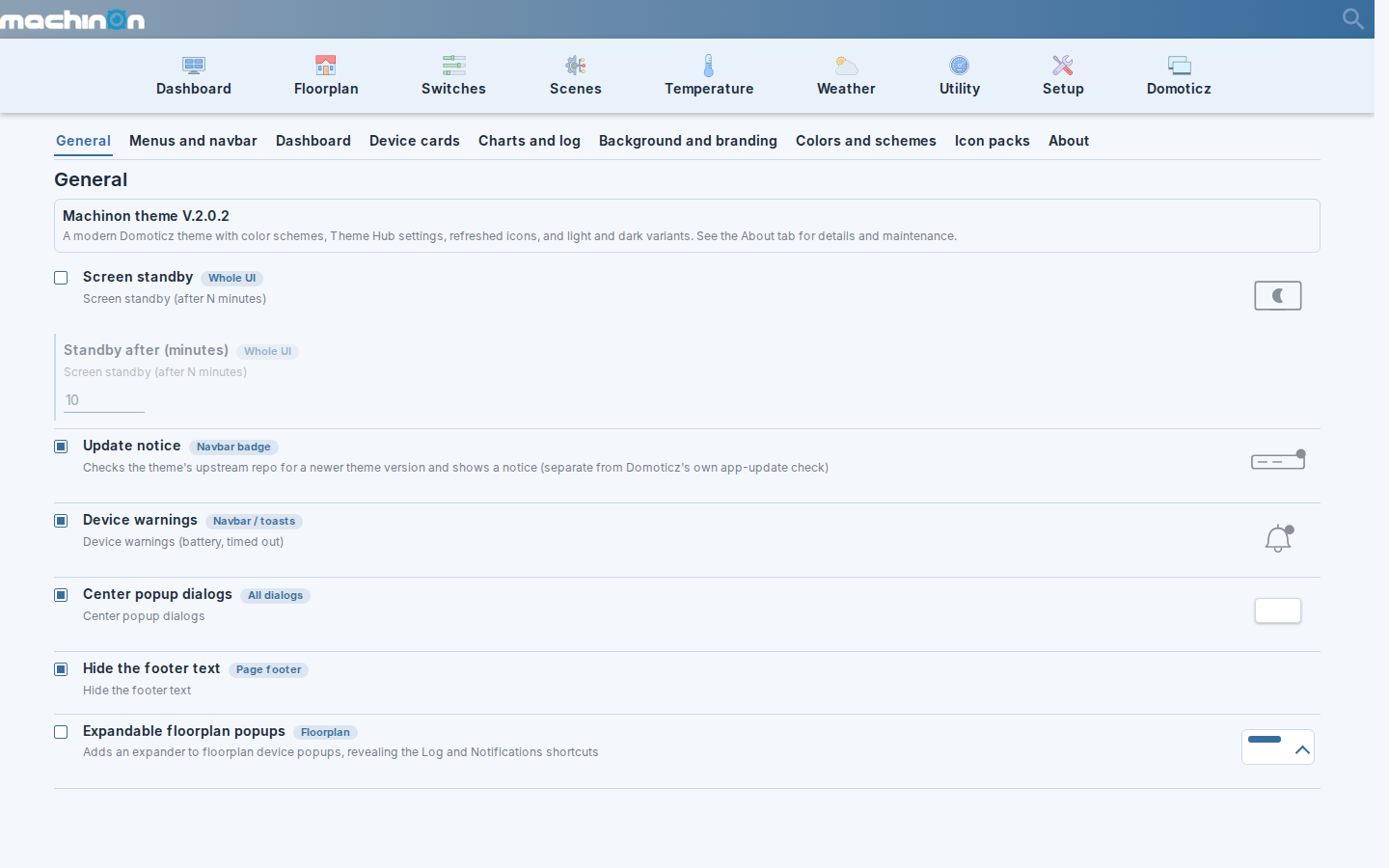
The Theme Hub is organized into nine tabs, in this order:
| Group | What it covers |
|---|---|
| General | Behavior that isn't tied to one page: screen standby, the update notice, device warning pop-up messages and how often they repeat, centering popup dialogs, the footer text, and expandable floorplan popups. |
| Menus and navbar | The navigation bar and Setup menu: the tile-grid settings menu, navbar icons, an optional custom menu page, and whether desktop uses the side menu. |
| Dashboard | The classic dashboard: the last-seen line on cards, the wide-screen column layout, and camera previews. |
| Device cards | How individual device cards look and behave everywhere they appear: relative times, dimming devices that are off, toggles instead of status text, the wind direction arrow, device photos, and the card width range. |
| Charts and log | Device history charts: range bands on log graphs. |
| Background and branding | The page background image and the navbar logo. |
| Colors and schemes | Pick a built-in color scheme, or design your own and save it as a preset. |
| Icon packs | Browse the icon library and install icons one at a time onto individual devices. Shown to administrators only, since an installed icon changes for everyone. |
| About | The theme's version, credits, links, and maintenance actions such as resetting settings back to their defaults. |
Each row also carries a small tag showing which part of the interface it affects (for example Whole UI or Navbar badge), so you can tell how far a change reaches before you make it. Some rows also show a small live preview next to them, illustrating what the setting changes. Many others don't: settings like the color scheme and icon packs open their own picker instead, and plenty of plain toggles apply immediately without needing one.
Personal settings versus shared settings
Most rows in the Theme Hub are either personal or shared:
- A personal setting changes how the theme looks only for your own browser and Domoticz user account. Other people using the same Domoticz installation don't see it change.
- A shared setting changes how the theme looks for the whole Domoticz installation. Everyone who opens it, on any device, sees the new value.
Two rows don't fit either label. The icon pack browser installs into Domoticz's own custom-icon library rather than storing a personal or shared value of its own, so an install is effectively shared by everyone regardless (see Icons); and the About tab is an information and maintenance panel, not a stored setting.
Most settings are personal (things like your color scheme, card width, or whether relative times are shown). A handful of settings that involve shared content or fixed infrastructure are shared instead, such as the navbar logo and the custom menu page's URL.
Whether a personal setting genuinely stays personal depends on whether your Domoticz installation has separate logins for each person. If everyone uses the same login, or the installation has no login at all, Domoticz has no way to tell users apart, so there is really only one copy of every setting: whoever changes something changes it for everyone, personal or not. If your installation does have separate logins, personal settings you change apply only to your own account, and shared settings can only be changed by an admin account, applying to everyone once saved.
Telling them apart in the Theme Hub: on an installation with separate logins, shared rows carry a small "house" label next to their name; personal rows carry no label. On an installation without separate logins, that label never appears, because there is nothing to distinguish, as explained above.
The About tab's maintenance actions let you reset your own personal settings back to the shared defaults, and, if you're an admin, reset or update those shared defaults for everyone.
Which specific setting is personal and which is shared is documented setting by setting in the settings reference.