Icon packs
A browsable library, not a single pack
Despite the name, Machinon's icon pack isn't one all-or-nothing set you switch on. It's a browsable library of 267 device icons in three visual styles, 85 Blue UI, 112 Color, and 70 Fun, and you install only the ones you actually want, one at a time, onto individual devices. Everything else in your dashboard keeps its existing icon.
The three styles
Browse the library from the Theme Hub's Icon packs tab, which sorts icons into three tabs:
- Blue UI: a clean, flat, blue-tinted line style, and Machinon's own default look.
- Color: the same shapes as Blue UI, redrawn in fuller color, and the larger of the two matched styles. Blue UI and Color are a matched pair, most icons in the library ship in both.
- Fun: a smaller, more playful, novelty set for dashboards that want a lighter tone.
On and off states
Every icon in the library has two pieces of art: one for when the device is on, one for when it's off, which is why a light or switch actually looks different depending on its state. In the icon browser, hover over an icon's preview to see its other state (tap it on a touchscreen); the image swaps between the two so you can check both before installing.
Installing an icon
- Open the Theme Hub (see Theme Hub) and go to the Icon packs tab.
- Pick a style tab (Blue UI, Color, or Fun), then browse or use the search box to find the icon you want.
- Click the install button on its card. Once installed, the card is marked Installed, and the button switches to a remove action.
There's also an Install / update all button that installs (or refreshes) every icon currently shown, useful if you've filtered down to a search result and want the whole set.
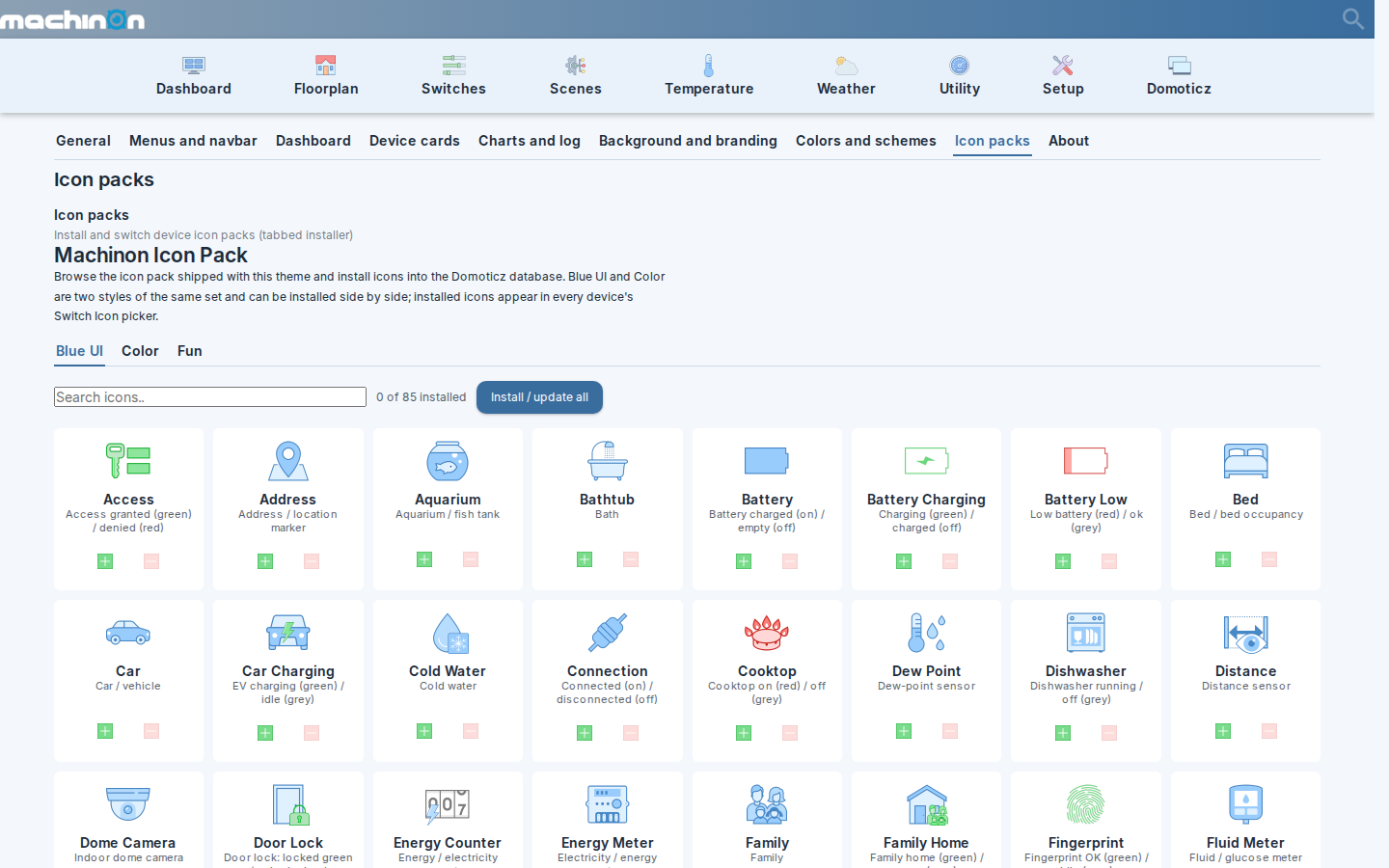
This changes your Domoticz instance, not just the theme
Installing an icon does not stay inside Machinon's own settings. It writes the icon into Domoticz's own custom-icon library (the same one behind Setup > More options > Custom Icons), exactly as if you'd uploaded a custom icon there by hand. That means:
- The icon stays installed even if you later switch away from Machinon to a different theme.
- It's visible to, and usable by, every user of your Domoticz installation, not just you: this is the one part of the icon system that is never personal.
- Removing an icon from the Theme Hub removes it from that same library. If any devices are using it, Machinon warns you which ones before removing it, and those devices revert to their default icon.
Assigning an icon to a device
Installing an icon makes it available; it doesn't put it on a device by itself. To use it:
- Open the device you want to change (its Edit dialog, from the Devices page or a card's edit button).
- Find the Custom Icon or Image field and pick the icon you just installed from the list.
- Save the device.
Requesting a new icon
If the device or symbol you need isn't in the library, you can ask for it to be added by opening a new icon request. That link takes you straight to the request form instead of a blank issue.
The library is built from Icons8 artwork, drawn from two specific Icons8 styles: Blue UI (the source for the pack's Blue UI icons) and Office M (the source for the pack's Color icons). The form asks for a link to the Icons8 icon you have in mind, and a request that links an icon already available in one of those two styles can generally be added as-is; a request for a shape that only exists in another Icons8 style takes more work, since it first needs a matching Blue UI or Office M version to be found or drawn. The form also asks whether the device has separate on and off states, whether it needs a small inset badge (like the lightning bolt on an energy meter icon), and which color tint to use.